EVENT REGISTRATION GUIDE
Manage Scouting with Black Pug
The Atlanta Area Council uses Black Pug software from 247scouting to manage registration for Scouting events and camp property reservations. It has a great number of tools to make Scouting easier for your unit year round. On this page you will find information on how to get started, videos about creating & managing a registration, plus helpful tips and answers to common questions.
LINKS
To log in or create an account: scoutingevent.com/092/Login
Access events you've signed up for and manage your registrations.
Reserve a camp property or facility: campreservation.com/092/Home
View availability and make a reservation for weekend camping or property rentals.

View a calendar of upcoming Scouting events: scoutingevent.com/092
Register for summer camp, Order of the Arrow events, training, and district and council events.

Find Scouting events across the country: global.scoutingevent.com
A one-stop location to search for training courses and other Scouting events shared by councils across the country.
GETTING STARTED
Create an Account
Go to Customer Login and click Register to create a new account. This account can be used for Atlanta Area Council Scouting events and camp reservations, as well as with other councils that use the Black Pug reservation system.
Why Create an Account?
- All Atlanta Area Council unit rosters are included in Black Pug, making it easy to select participants and automatically fill in their information.
- If your council does not use Black Pug, you can upload your unit roster to your account.
- Access to a unit roster allows you to register unit members simply by selecting them from the roster. Black Pug will automatically fill in related member information, such as names, and can verify Scout ranks and ages for youth participants and current registration status for adults attending overnight events.
- Your account can be used to register for events hosted by any council that uses Black Pug, and your unit roster follows you. Note: Council staff do not have access to your Black Pug account. They can only access information related to events for which you have registered.
- When registering for multiple summer camps or multiple weeks at the same summer camp, all registrations are accessible from your Black Pug account. This makes moving participants between registrations much easier.
- From your account, you can view and access all current and past registrations without needing to know the registration number.
Registration Access
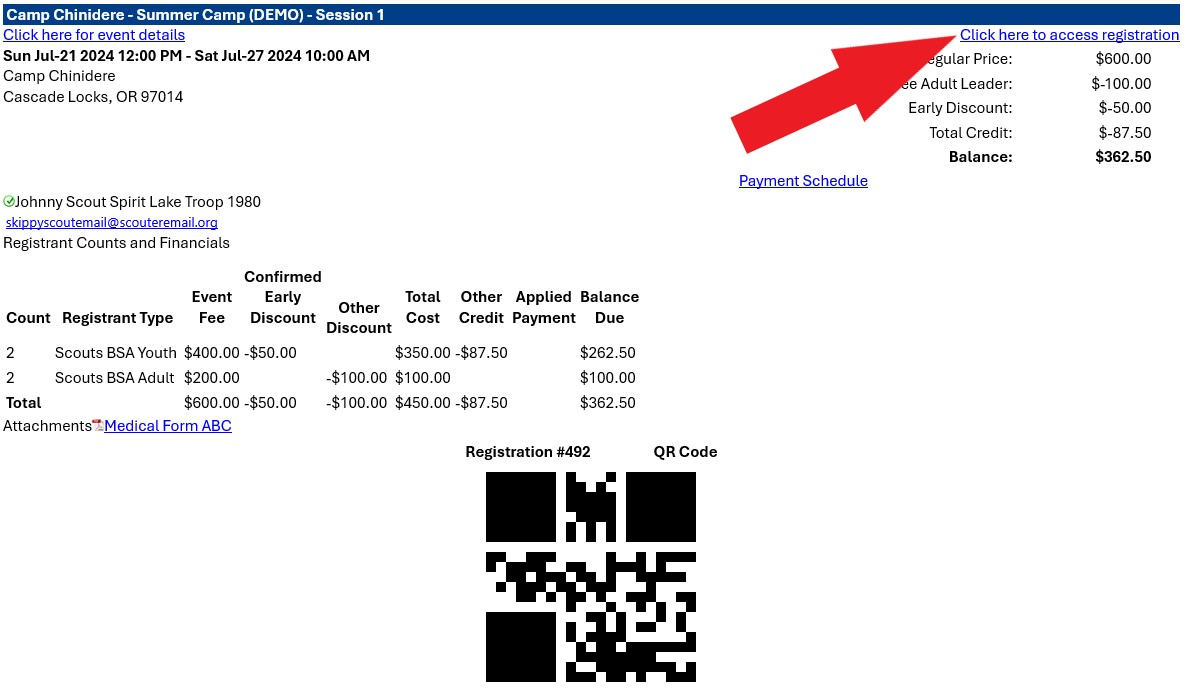
The person who makes a registration is the only one who receives a link to access the registration.
How to Let Others Access a Registration?
For security reasons, the registration access link is sent only to the registration contact. However, the registration contact can provide access to someone they trust by forwarding the confirmation email received after registration, which contains the registration access link.
SETTING UP AN ACCOUNT
ACCESS YOUR UNIT ROSTER
STARTING A REGISTRATION
COMPLETING A REGISTRATION
FAQ & HOW TO GUIDES
Scouting Event
A how-to guide for registering for summer camp, district, & council events.
Account Basics
How to Use a Personal Roster
How to Use the Council Provided Unit Roster
I can not see the Council Provided Unit Roster
By default, only the primary Unit Leader and Committee Chair have access to the official unit roster uploaded by the Atlanta Area Council. Additional individuals, such as a unit treasurer or camp organizer, can also be granted access.
To give someone additional access to the unit roster for Scouting events, the Unit Leader or Committee Chair must contact the Atlanta Area Council at claudette.cunnold@scouting.org or 770-956-5687.
How to Register for an Event-Starting a Registration
How to Register for an Event-Fill in Participant Info & Check Out
Using the Parent Portal-Guide for Unit Leaders
Using the Parent Portal-Guide for Parents
How to Sign Up for Classes
How to Select a Campsite
Part Time Adults
Tips for Scouting Event Registration
- There are three tabs used to navigate the registration: Participants, Payment, and, for some events, Reports. Any tab or text shown in red indicates that required information is missing. Click Update Information for each participant and complete all required items marked in red before proceeding.
- Under Registration Contact, click Preview Information to review the information entered when the registration was created. Under Additional Actions, you can add participants, view the payment schedule, and review your payment history.
- The registration contact information is automatically assigned to one of the adult participant spots when adults are included in the registration. If the registration contact is not attending the event, click Update Information and enter the information for the correct attendee.
- In the right column, you can review the total charges and, for events with a payment schedule, select the amount you wish to pay. Most events require payment in full, so you may need to remove a participant if you are not ready to pay for them at checkout. When you are ready to make your payment, click Proceed to Checkout.
- Enter your billing information, then scroll down and select the "I have read..." acknowledgment. Once selected, the available payment options will appear.
- A confirmation email will be sent to the individual listed as the registration contact.
- If your registration is still In-Progress and you have not completed checkout, you can delete the entire registration from the Additional Actions menu under Registration Contact. Once payment has been made, cancellations must be handled through the council office and applicable refund policies will apply. The Additional Actions menu may also provide access to other reports and features depending on the event.
- If you start a registration but do not complete checkout, the system will send you an email with a link to access your In-Progress registration. Use this link to continue the existing registration rather than creating a new one and re-entering your information.
What is the Parent Portal?
Some events will have Parent Portal enabled. The person managing the registration can use Parent Portal to allow parents to access information and manage certain aspects of their Scout's registration.
Depending on the permissions selected by the unit leader, parents may be able to register their Scout, make payments, or select classes. The unit leader determines which options parents can access in Black Pug.
When Parent Portal is enabled, unit leaders will have access to a report within their registration that provides a QR code and login information for each Scout to share with their parent or guardian.
What are Event Reports?
Each registration has its own list of availalbe reports. View your registration and click on the Reports tab to see and run the reports available for that event. Most events will include roster of participants, account summary, and payment details.
Summer camp reports include Unit Roster of people attending camp, advancement records including blue cards & a upload file for Scout Book, class schedules, payment allocations by participant, incomplete merit badges, and more.
How Do I Find My Registration?
To find an existing registration, visit Registration Lookup.
- If you have an account, log in to view your registrations.
- If you do not have an account or do not know your registration number, click Forgot Registration Number and enter the email address used to create the registration. You will receive an email listing all registration numbers associated with that email address. Click the applicable registration number in the email to return to your registration.
Is the Reservation System Down?
Click here to view the website status: status.blackpug.net
Camp Reservation
A how-to guide for reserving a camp property or facility.
Account Basics
How to Make a Camp Reservation
Contact